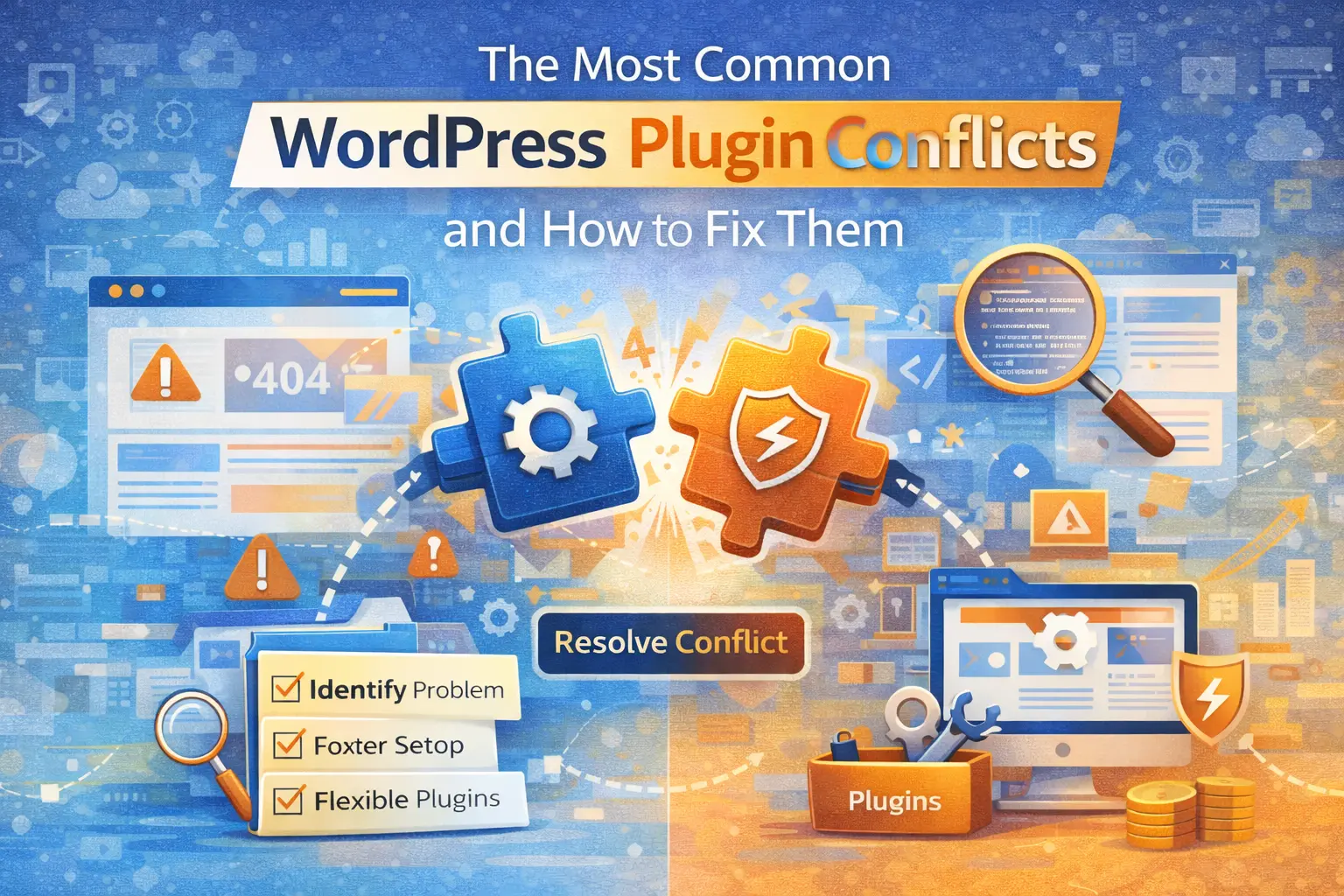
The Most Common WordPress Plugin Conflicts and How to Fix Them
Introduction
WordPress is powerful largely because of its plugin ecosystem. Plugins allow businesses to add functionality such as contact forms, e-commerce, SEO optimisation, booking systems, and security tools without building features from scratch. However, this flexibility introduces a common challenge: plugin conflicts. Many business owners experience website errors after installing or updating a plugin. Pages may stop loading, layouts may break, or certain features may stop functioning altogether. Understanding why plugin conflicts occur and how to resolve them is essential for maintaining a stable WordPress website.
What Is a Plugin Conflict?
A plugin conflict occurs when two or more plugins attempt to perform similar tasks, modify the same resources, or load incompatible scripts.
WordPress plugins operate by adding code to your website. When that code overlaps or clashes with other code, whether from another plugin or your theme, it can create instability.
This may result in:
The “white screen of death”
Broken layouts
Missing features
Slow performance
Error messages
Plugin conflicts are not necessarily caused by poor plugins. Often, they arise from compatibility issues between updates.
Why Plugin Conflicts Happen
Plugin conflicts typically occur for several reasons. One common cause is outdated plugins. When WordPress core updates, older plugins may not be compatible with the new version. Another cause is overlapping functionality. For example, installing two security plugins that both attempt to modify login authentication can create conflicts. Theme incompatibility is also a factor. Some themes include built-in functionality that duplicates plugin features. According to Sucuri’s Website Threat Research Report (2023), outdated plugins remain one of the leading causes of WordPress website vulnerabilities and instability. This reinforces the importance of proper update management.
Signs That You Have a Plugin Conflict
Recognising the symptoms early prevents extended downtime.
Common indicators include:
Website crashing immediately after a plugin installation
Features disappearing after an update
Admin dashboard errors
JavaScript errors in the browser console
Significant speed reduction
If problems appear immediately after installing or updating a plugin, that plugin is likely involved.
How to Safely Identify the Problem
When troubleshooting plugin conflicts, the most important principle is caution. Never test directly on a live business website if possible. Instead, use:
A staging environment
A backup copy of the site
The safest method to identify a conflicting plugin is systematic deactivation.
Deactivate all plugins temporarily. Then reactivate them one at a time, checking the website after each activation.
When the issue reappears, you have identified the conflicting plugin.
Although this process takes time, it prevents guesswork.
How to Resolve Plugin Conflicts
Once identified, resolving the conflict depends on the situation.
In some cases, updating the conflicting plugin to its latest version resolves compatibility issues.
If both plugins perform similar functions, removing one may be the simplest solution.
Sometimes replacing a problematic plugin with a better-supported alternative is advisable.
If the issue involves theme incompatibility, switching to a well-supported theme may be necessary.
For more complex conflicts involving custom code, a developer may need to adjust scripts or resolve dependency issues manually.
Preventing Plugin Conflicts
Prevention is more efficient than troubleshooting.
Best practices include:
Limiting plugin usage to essential functionality.
Avoiding duplicate plugins serving the same purpose.
Regularly updating WordPress core, themes, and plugins.
Using reputable plugins with active support and recent updates.
Testing updates in staging before applying them live.
WordPress flexibility should be managed strategically rather than excessively.
The Role of Structured Maintenance
Many plugin conflicts occur because websites are not maintained consistently. WordPress is not a static platform. It evolves regularly. Regular maintenance includes:
Scheduled updates
Backup verification
Performance monitoring
Security scanning
According to WPScan vulnerability reports, many WordPress exploits target outdated plugins rather than WordPress core itself.
Structured maintenance significantly reduces risk.
When to Consider Custom Development
If your WordPress website relies heavily on numerous plugins to simulate complex workflows, recurring conflicts may indicate architectural limitations. In some cases, custom development or system redesign may provide greater stability. Technology decisions should align with operational complexity. If plugins are compensating for structural limitations, a more integrated system may be necessary.
Conclusion
Plugin conflicts are a manageable aspect of running a WordPress website. They occur when flexibility is not accompanied by structured oversight.
With proper maintenance practices, careful plugin selection, and regular updates, WordPress can remain stable, secure, and scalable. Digital infrastructure requires active management. WordPress is powerful, but power must be structured.
References
Sucuri (2023). Website Threat Research Report. https://sucuri.net/reports/
WPScan Vulnerability Database. https://wpscan.com
Frequently Asked Questions
Tags:
Comments (0)
No comments yet. Be the first to share your thoughts!
Leave a Comment
Subscribe to Our Newsletter
Get the latest insights on digital transformation delivered to your inbox
